
Introduction to BIG-IP LTM: Pools
|
Applied version
|
Introduction to LTM Pools
About Pools
A pool is a logical set of devices, such as web servers, that you group together to receive and process traffic.
- A pool consists of pool members.
- A pool member is a logical object that represents a service that runs inside a node on the network.
- Instead of sending client traffic to the destination IP address specified in the client request,
- The BIG-IP system sends the request to any of the pool member.
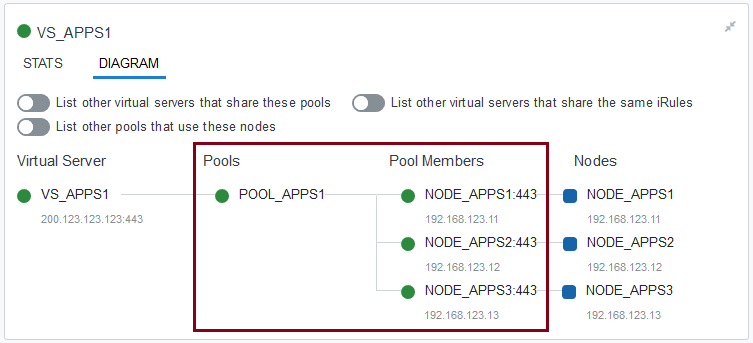
Based on their purpose, pools can be classified into 3 type of pools:
- Server pools
- The most common type of pool
- A server pool is a pool containing one or more server nodes that process application traffic
- Commonly server pool contains web servers, and used to load balance application traffic
- *Destination address translation is enabled
- Gateway pools
- A gateway pool is a pool of routers, and used as a next-hop IP address
- *Destination address translation is disabled
- A gateway pool is a pool of routers, and used as a next-hop IP address
- Clone pools
- A clone pool receives all of the same traffic that the server pool receives
- Commonly used to copy and send traffic to a pool of IDSs (Intrusion Detection Systems)
- *An IDS is a device that monitors inbound and outbound network traffic
- *Identifies suspicious patterns that might indicate malicious activities or a network attack
- To configure a clone pool, you first create a pool of IDS or sniffer devices and then assign the pool as a clone pool to a virtual server
- *Note that when you create the clone pool, the service port that you assign to each node is irrelevant; you can choose any service port
- *Also, when you first add a clone pool to a virtual server, the system copies only new connections; existing connections are not copied
- You can configure a virtual server to copy client-side traffic, server-side traffic, or both:
- *A client-side clone pool causes the virtual server to replicate client-side traffic (prior to address translation)
- *A server-side clone pool causes the virtual server to replicate server-side traffic (after address translation)
- You can configure an unlimited number of clone pools on the BIG-IP system.
Pools are the basis for creating a virtual server.
For any pool that you want to be part of a virtual server, you must first:
- Create a pool, associate pool member(s) to the pool.
- You can also associate a health monitor to the pool, to report the status of the pool member.
- After creating a pool, you can attach a pool to a virtual server as a default pool.
- Or you can also attach the pool via iRules/Policies.
Pools Health Monitors
Health monitors are a key feature of the BIG-IP system.
Health monitors help to ensure that a server is in an up state and able to receive traffic.
A health monitor for a pool reports the status of a service running on the pool member.
List of Available Health Monitors for Pools
Not all health monitors can be attached to Pools, especially those that only have an IP address as the destination, rather than an IP address and a service port. For example:
- icmp, snmp_dca, tcp_echo
Below are default pre-configured health monitors that you can associate with pools:
- gateway_icmp, http, http_head_f5, https, https_443, https_head_f5, inband, tcp, tcp_half_open, udp
Pools Configuration
You perform this task to create a pool on the BIG-IP system.
- On the Main tab, click “Local Traffic ›› Pools : Pool List ›› Create”.
- Create new Pool
- Configuration – Basic (Figure 1)
- Configuration – Advanced (Figure 2)
- Resources (Figure 3)
- Load Balancing Method (Figure 4)
- Priority Group Activation (Figure 5)
- Inside Pool
- Properties (Figure 6)
- Members (Figure 7)
- Member Properties (Figure 8)
- Health Monitor – Inherit From Pool (Figure 9)
- Health Monitor – Member Specific (Figure 10)
- Pools Statistics (Figure 11)
Important details about the Pool features
You can configure the BIG-IP system to perform a number of different operations for a pool.
(1) Associating a health monitor with a pool
With the BIG-IP system, you can configure your monitor associations in many useful ways:
- You can associate multiple monitors with the same pool/pool member (Figure 8)
- You can specify the number of Health Monitor(s) that must be successful before the node is considered up, via “Availability Requirement”
- You can associate a health monitor with an entire pool instead of an individual pool member
- Pool member health monitors will “inherit from Pool” setting (Figure 9)
- You can associate a health monitor with an individual pool member
- Pool member health monitors will be “member specific” (Figure 10)
(2) Enable or disable SNAT connections
When configuring a pool, you can specifically disable any SNATs or NATs for any connections that use that pool. By default, these settings are enabled. (Figure 2)
(3) Action when a service becomes unavailable
You can specify the action that you want the BIG-IP system to take when the service on a pool member becomes unavailable.
Possible actions are:
- None. This is the default action.
- The BIG-IP® system sends an RST (TCP-only) or ICMP message.
- the BIG-IP system simply cleans up the connection.
- the BIG-IP system selects a different node.
You should configure the system to select a different node in certain cases only, such as:
- When the relevant virtual server is a Performance (Layer 4) virtual server with address translation disabled.
- When the relevant virtual server’s Protocol setting is set to UDP.
- When the pool is a gateway pool (that is, a pool or routers)
(4) Priority-based member activation
Priority-based member activation is a feature that allows you to categorize pool members into priority groups, so that pool members in higher priority groups accept traffic before pool members in lower priority groups.
The priority-based member activation feature has two configuration settings:
- Priority group activation
Specify the minimum number of members that must remain available in each priority group in order for traffic to remain confined to that group.- The allowed value for this setting ranges from 0 to 65535.
- Setting this value to 0 disables the feature (equivalent to using the default value of Disabled).
- Priority group
Specify a priority group for each member when you add that member to the pool.
(5) Slow ramp time
- When you take a pool member offline, and then bring it back online, the pool member can become overloaded with connection requests, depending on the load balancing method for the pool.
- For example, if you use the Least Connections load balancing method, the system sends all new connections to the newly-enabled pool member (because, technically, that member has the least amount of connections).
- With the slow ramp time feature, you can specify the duration of the system sends less traffic to a newly-enabled pool member. The amount of traffic is based on the ratio of how long the pool member is available compared to the slow ramp time, in seconds. Once the pool member is online for a time greater than the slow ramp time, the pool member receives a full proportion of the incoming traffic.
(6) Type of Service (ToS) level
Another pool feature is the ToS level. The ToS level is one means by which network equipment can identify and treat traffic differently based on an identifier in Layer 3 IP Packet.
- As traffic enters the site, the BIG-IP system can set the ToS level on a packet.
- The BIG-IP system can apply an iRule and send the traffic to different pools of servers based on that ToS level.
- ToS value is then inspected by upstream devices and given appropriate priority.
- There are 2 options for configuring ToS
- IP ToS to Client: set ToS within a packet sent to the client.
- IP ToS to Server: set ToS within a packet sent to the server.
- Available parameter value:
- Specify: 0-255
- Pass Through: the system does not change the ToS value within a packet.
- Mimic: sets the ToS level of outgoing packets to the same ToS value of the most-recently received incoming packet.
(7) Quality of Service (QoS) level
Another setting for a pool is the QoS level. In addition to the ToS level, the QoS level is a means by which network equipment can identify and treat traffic differently based on an identifier in Layer 2 Frame (CoS = Class of Service).
- There are 2 options for configuring CoS
- Link QoS to Client: set CoS within a packet sent to the client.
- Link QoS to Server: set CoS within a packet sent to the server.
- Available parameter value:
- Specify: 0-7
- Pass Through: the system does not change the CoS value within a packet.
(8) Number of reselect tries
You can specify the number of times that the system tries to contact a new pool member after a passive failure. A passive failure consists of a server-connect failure or a failure to receive a data response within a user-specified interval. The default value of 0 indicates no reselects.
*This setting is for use primarily with TCP profiles. Using this setting with a Fast L4 profile is not recommended.
(9) TCP request queue
- TCP request queuing provides the ability to queue connection requests that exceed the capacity of connections for a pool, pool member, or node, as determined by the connection limit.
- Consequently, instead of dropping connection requests that exceed the capacity of a pool, pool member, or node, TCP request queuing enables those connection requests to reside within a queue in accordance with defined conditions until capacity becomes available.
0 Comments