
Introduction to BIG-IP LTM: Nodes
|
Applied version
|
Introduction to LTM Nodes
About Nodes
A node is a logical object on the BIG-IP system that identifies the IP address of a physical/logical resource on the network.
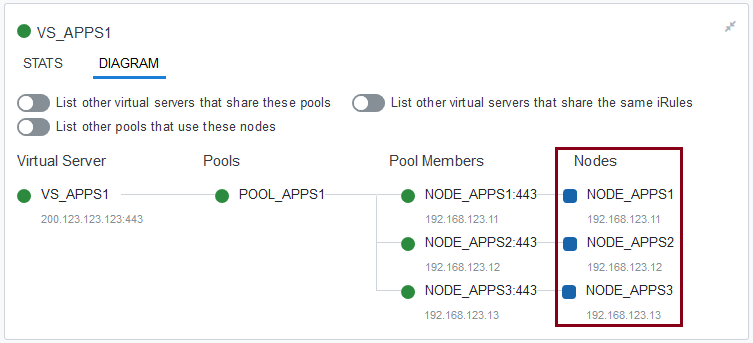
A node and a pool member are quite similar, but they are not identical.
The difference is that a node is designated by the device’s IP address only (192.168.123.11), while designation of a pool member includes an IP address and a service port (such as 192.168.123.11:443).
Nodes are the basis for creating a load balancing pool.
For any server that you want to be part of a load balancing pool, you must first:
- Create a node, that is, designate that server as a node.
- You can also associate a health monitor to the node, to report the status of that server.
- After designating the server as node, you can add the node to a pool as a pool member.
Nodes Health Monitors
A primary feature of nodes is their association with health monitors.
Like pool members, nodes can be associated with health monitors as a way to determine server status.
- However, a health monitor for a pool member reports the status of a service running on the device.
- Whereas a health monitor associated with a node reports status of the device itself.
There are two ways that you can associate a monitor with a node (you have choose between the two):
- Assigning the same monitor (that is, a default monitor) to multiple nodes at the same time.
- Explicitly associating a monitor with each node as you create it.
List of Available Health Monitors for Nodes
Not all health monitors can be attached to Nodes, especially those that have unsigned service port and require service port to run, for example: TCP monitor.
Below are default pre-configured health monitors for nodes:
- gateway_icmp, https_443, icmp, real_server, snmp_dca, tcp_echo
Nodes Configuration
You perform this task to create a node on the BIG-IP system.
- On the Main tab, click “Local Traffic ›› Nodes : Node List ›› Create”.
- Create new Node
- General Properties – Address
- Health Monitor: Node Default (Figure 1)
- Health Monitor: Node Specific (Figure 2)
- General Properties – FQDN (Figure 3)
- General Properties – Address
- Inside Node – Properties (Figure 4)
- Nodes Statistics (Figure 5)
Important details about the Configuration properties
(1) Availability Requirement (significant if you activate more than one health monitor)
- “All” Health Monitor(s)
- Specifies that all active health monitors must be successful before the node is considered up.
- At Least “X” Health Monitor(s)
- Specifies the number of Health Monitor(s) that must be successful before the node is considered up.
(2) Ratio
- Specifies the load balancing ratio weight to assign to the node (1-65535).
(3) Connection Limit
- When the current connections count reaches this number, the system does not send additional connections to that pool member or node.
- When used with the weighted least connections load balancing methods, the system uses connection limits to determine the proportional load of each pool member or node.
(4) Connection Rate Limit
- Specifies the maximum number of connections-per-second allowed for a node.
- When reaches the limit, the system drops (UDP) or resets (TCP) additional connection requests.
Important details about the FQDN properties
(5) Auto Populate
- Enabled
- The system generates an ephemeral node for each IP address returned in response to a DNS query for the FQDN of the node.
- Additionally, when a DNS response indicates the IP address of an ephemeral node no longer exists, the system deletes the ephemeral node.
- Disabled
- The system generates an ephemeral node for only one IP address returned in response to a DNS query for the FQDN of the node.
- Additionally, when there is a change in the IP address returned by DNS server, the system updates the ephemeral node.
(6) Interval
- Specifies the interval (in seconds) in which a query occurs, when the DNS server is up.
- The associated monitor attempts to probe three times, and marks the server down if it there is no response within 3x interval value.
- Note that instead of using an interval value, you can choose to “use TTL” (Time to Live) in the DNS response.
(7) Down Interval
- Specifies the interval (in seconds) in which a query occurs, when the DNS server is down.
- The associated monitor continues polling as long as the DNS server is down.
0 Comments